

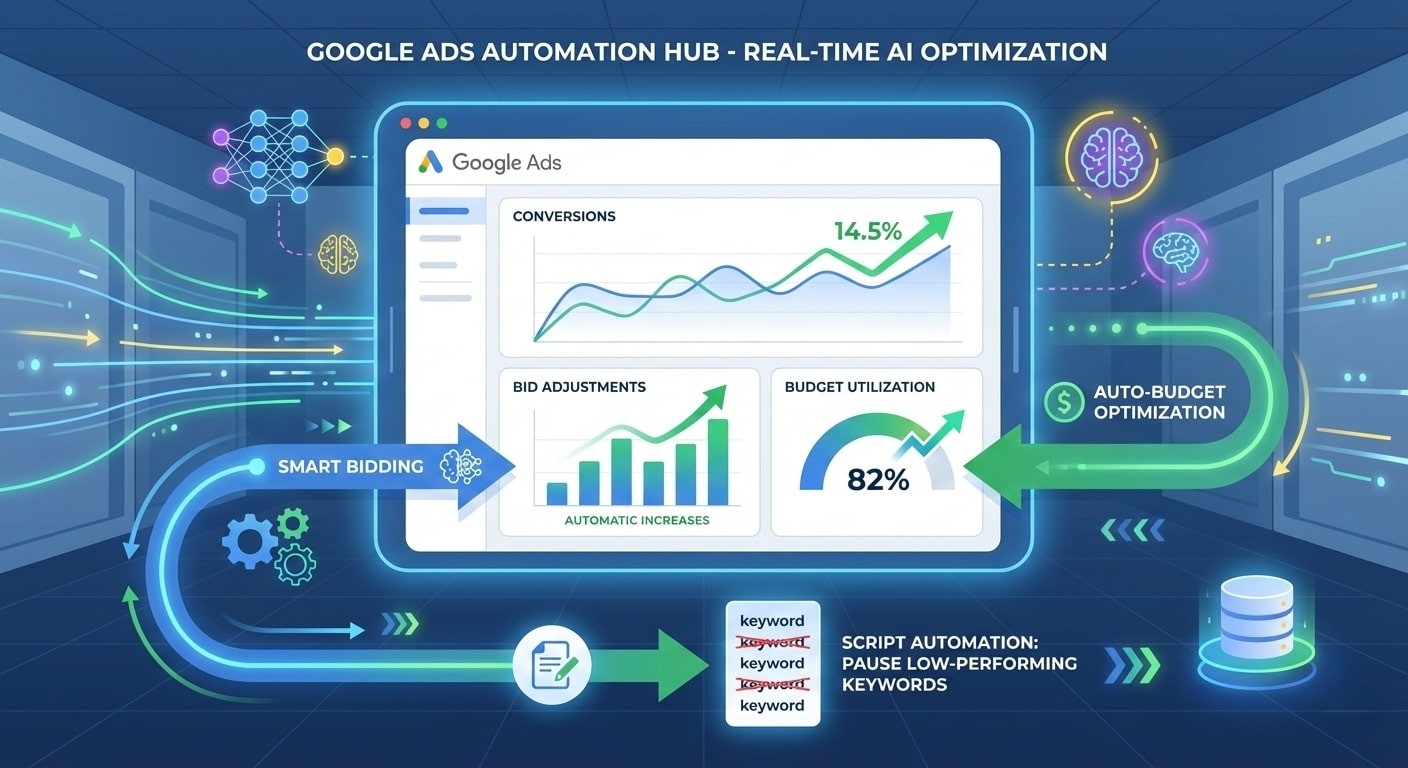
At times, managing your Google Ads campaigns can get chaotic, whether you’re running multiple campaigns or you have limited resources. That’s where Google Ads automation comes in. Whether you want to automate bids or script annoying repetitive tasks, automation tools can help you save time, work more efficiently and get better results out of your campaigns.
In this guide, you’ll learn the fundamentals of using Google Ads automation including Smart Bidding, scripts, and critical strategies to get you started!
If you’re a small business owner, a marketer new to Google Ads, or a seasoned advertiser in need of a boost, this guide will demystify jargon and help you make automation work for your business.
Why You Need Google Ads Automation
Google Ads automation is intended to streamline campaign management. Instead of having to manually optimize bids or spend hours wading through mountains of data, auto tools can do the deciding for you, in real-time, using concepts such as artificial intelligence and machine learning.
Why Use Automation?
Saves Time
Automation also saves the time of human resources on repetitive tasks such as daily bid adjustments, audience segments, or reports generated. That means that we can free you up to concentrate on strategy and creative work.
Improves Efficiency
Machine learning is powered by the real-time data that human teams might overlook — automated tools can react quicker and smarter in fiercely competitive auction environments.
Optimizes Performance
Automation is using an unfathomable amount of data to optimize for the outcomes you want, whether that’s enhancing CTRs or increasing conversions.
Custom Solutions
Tools like scripts, already quite advanced, allow advertisers to custom-fit automation for specific campaign needs.
Whether you want a greater ROI, more sales, or better brand recognition, with Google Ads automation, you can spend less time tweaking and more time strategizing.
Mastering Smart Bidding
One of the Google Ads’ automation tools that we’d like to focus on today is Smart Bidding. And machine learning is employed to optimize bids every time an auction runs, a practice that’s often called “auction-time bidding.”
What Is Smart Bidding?
Smart bidding provides a range of automated bid strategies to profile your campaign goals, such as:
- Maximize Conversions – Get as many conversions as you can within your budget.
- Target ROAS (Return on Ad Spend) – Bids to help maximize conversion value.
- Target CPA (Cost per Acquisition) – Bids that help you get as many conversions as possible at or below your target cost-per-action.
- Maximize Conversion Value – Optimizes for the most conversion value.
- ECPC (Enhanced Cost per Click) – Bids are adjusted by the probability of conversion while at the same time not exceeding Manual CPC.
How to Set Up Smart Bidding
Define Your Objective
Figure out what it is you want to accomplish. For instance, if you want to boost sales while staying profitable, Target ROAS could be ideal.
Input Conversion Data
Conversion tracking must be spot on. Make sure you’re tracking conversions correctly in your campaigns, whether it be form submissions, purchases, or app downloads.
Assign Budgets Strategically
Establish reasonable budgets that are compatible with your objectives for the campaign. Begin with the mid-size budget and tweak as it goes.
Monitor and Optimize
Using Smart Bidding (or any bid automation) isn’t “set it and forget it.” You can analyze performance on a regular basis and optimize audience segments, ad copy or campaigns of your creative.
When to Use Smart Bidding
Smart Bidding can be especially effective if you have:
- Significant conversion data
- Clear, measurable goals
- A desire to experiment with and iterate on campaigns
Maximizing Efficiency with Google Ads Automation: Key Strategies and Best Practices
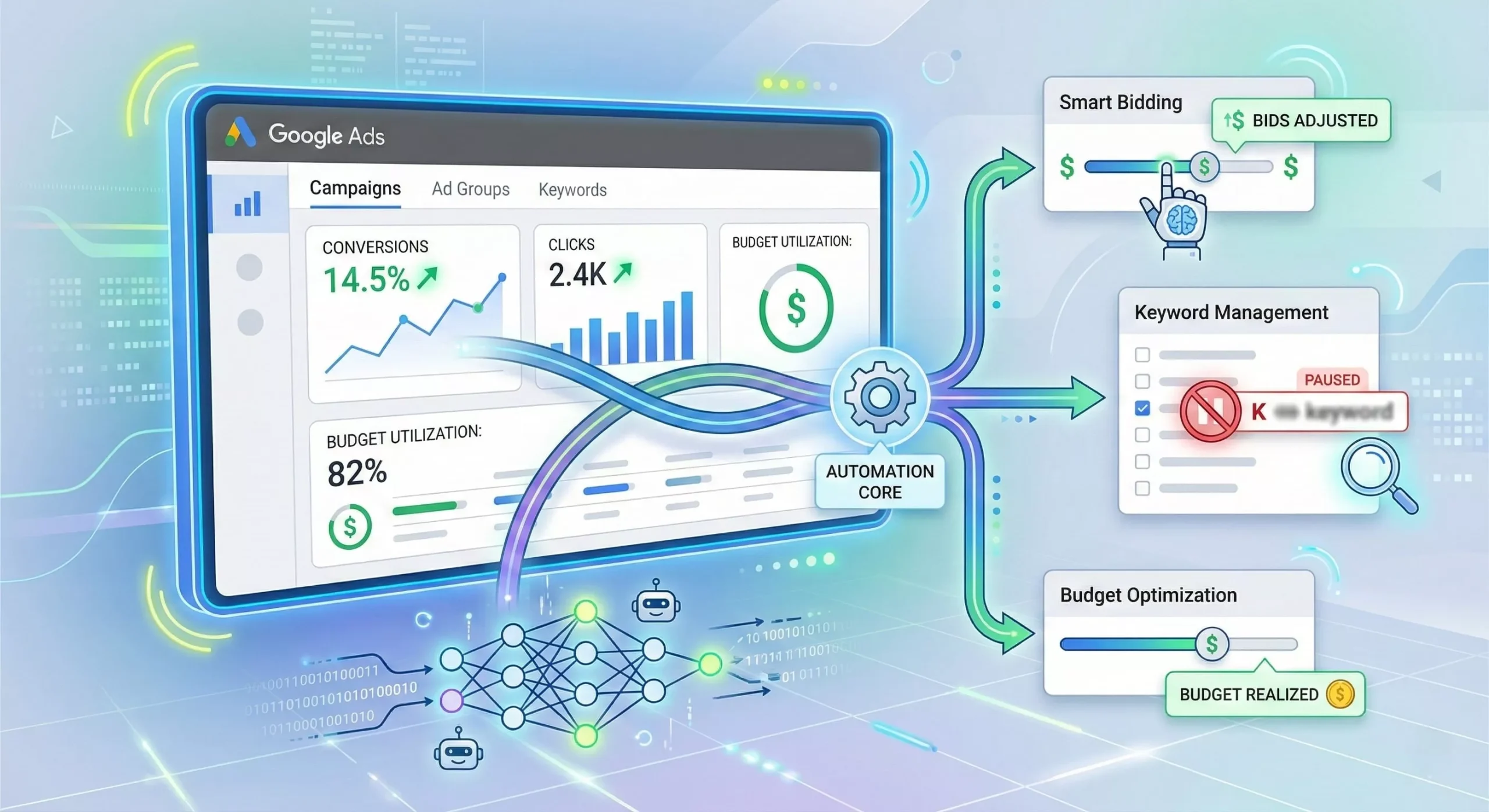
Google Ads automation is a powerful tool for marketers looking to optimize their campaigns with minimal manual effort. However, to truly harness its full potential, it’s important to implement the right strategies and follow best practices. Below, we’ll outline some key strategies to ensure your automation efforts are as effective as possible.
1. Define Clear Campaign Goals
Before diving into automation, ensure your campaign objectives are clearly defined. Google Ads automation tools, such as Smart Bidding, perform best when aligned with specific goals. Whether you want to maximize conversions, boost ROI, or maintain a target cost-per-acquisition (CPA), having clear goals will help you set up your campaigns more effectively.
Best Practices:
- Set measurable KPIs (Key Performance Indicators) that align with your business objectives.
- Regularly revisit and adjust your goals as your campaigns evolve.
2. Leverage Machine Learning with Smart Bidding
Smart Bidding is one of the most powerful automation tools within Google Ads. It uses machine learning to adjust bids in real-time based on various auction-time signals, such as device, location, and time of day. By using Smart Bidding, you can ensure that each ad auction is optimized for the best possible outcome.
Best Practices:
- Choose the most suitable bid strategy for your goals (e.g., Target CPA for cost-efficiency or Maximize Conversions for volume).
- Ensure you have enough conversion data (Google recommends at least 30 conversions in the past 30 days) for machine learning to work effectively.
- Regularly monitor performance and make adjustments as needed to avoid over-bidding.
3. Automate Routine Tasks with Google Ads Scripts
Google Ads Scripts provide a flexible way to automate repetitive tasks that can be time-consuming. Whether it’s pausing low-performing keywords, adjusting bids, or generating performance reports, scripts help marketers save time and focus on higher-level strategy.
Best Practices:
- Start with Google’s pre-written script templates to automate common tasks (like adjusting budgets or generating reports).
- Test your scripts in Preview Mode to ensure they work as expected without affecting campaign performance.
- Schedule your scripts to run during off-hours to minimize disruptions.
4. Use Dynamic Ads to Automate Ad Copy
Dynamic ads automatically generate headlines and landing pages based on the keywords in the user’s search. This helps advertisers show the most relevant ad to each user, making it easier to scale campaigns while still maintaining personalized content.
Best Practices:
- Use Dynamic Search Ads (DSAs) for campaigns with a large inventory of products or services.
- Regularly review the performance of your dynamic ads and make adjustments to ensure they align with your overall strategy.
- Keep your landing pages optimized and relevant to the dynamic ad content to improve conversion rates.
5. Monitor Automation Performance Regularly
Automation doesn’t mean you can set it and forget it. While Google Ads automation tools can handle much of the heavy lifting, it’s important to consistently monitor your campaigns to ensure optimal performance. Regular checks allow you to identify underperforming areas and tweak your automation settings accordingly.
Best Practices:
- Use Google Ads’ built-in reporting tools to track campaign performance and evaluate the effectiveness of automation tools.
- Set up alerts to notify you of any significant changes in campaign performance or budget anomalies.
- Adjust your automation settings based on seasonality or changes in your business strategy.
6. Experiment with New Automation Features
Google Ads is constantly evolving, introducing new automation features and tools. Experimenting with these new features can help you stay ahead of the competition and continuously improve your campaigns.
Best Practices:
- Test new automation features in a small, controlled campaign before rolling them out on a larger scale.
- Stay updated with Google Ads announcements and blog posts to learn about new automation tools and features.
- Leverage Google’s machine learning capabilities by allowing the system to optimize targeting, bidding, and creatives based on user behavior.
Automation with Google Ads Scripts

While Smart Bidding manages the most important bidding decisions for a campaign, Google Ads scripts take automation a step further by allowing you to automate hundreds of additional tasks based on campaign data. These tasks might include keyword management, budget adjustments, reporting, and even monitoring performance anomalies.
Scripts can be especially useful for large campaigns where managing each individual element manually would be time-consuming and inefficient. Whether you’re looking to pause underperforming keywords, adjust budgets based on traffic, or generate custom performance reports, Google Ads scripts give you the flexibility to automate these tasks, saving you both time and resources.
What Are Google Ads Scripts?
Google Ads scripts are small pieces of JavaScript-like code that run directly within your Google Ads account. They allow you to automate specific tasks and customize your workflow to suit your needs. While the idea of using scripts may sound technical, you don’t have to be a programmer to use them. Google provides a large library of pre-written templates for everyday tasks, making it easier for non-developers to start using scripts.
Scripts can be tailored to automate nearly every aspect of your Google Ads account, from simple tasks to complex operations. These scripts are executed within your Google Ads account, making them a powerful tool for optimizing and streamlining your campaign management.
Usefulness of Google Ads Scripts
Google Ads scripts are incredibly versatile and can be used for a wide range of tasks. Below are some of the most common uses:
1. Pause Low-Performing Keywords
One of the most common uses for scripts is to automatically pause underperforming keywords, saving your budget for better-performing ones. You can create a script that evaluates keyword performance based on metrics like CTR, conversion rate, or ROAS and pauses those that fall below a specific threshold. This ensures that you don’t waste money on keywords that aren’t contributing to your campaign goals.
Example:
-
Set up a script that pauses keywords with a CTR below 1% and a conversion rate below 0.5%, ensuring you only spend on keywords that bring value to your campaigns.
2. Generate Performance Reports
Automating the creation and delivery of custom performance reports can save you hours of manual work. You can set up scripts to generate detailed reports on campaign performance, keyword metrics, or budget utilization and have them sent directly to your inbox. These reports can be tailored to your specific needs, allowing you to quickly assess campaign health without logging into your Google Ads account every day.
Example:
-
Set up a script to email you weekly reports on campaign performance across all your ad groups, focusing on key metrics such as CPC, CTR, and conversions.
3. Adjust Budgets Automatically
Budget adjustments are often required when there are fluctuations in traffic, seasonality, or campaign performance. With Google Ads scripts, you can create custom scripts to increase or decrease budgets based on specific triggers. For example, if you notice higher traffic during certain times of the day or month, you can increase your budget automatically during peak times.
Example:
-
Set up a script that increases the budget for high-performing campaigns when traffic spikes (e.g., during holidays or special sales events), and reduces the budget when performance drops.
4. Monitor and Flag Anomalies
Scripts can also be used to monitor and flag any anomalies in your campaign performance. For example, you can set up a script to alert you if there’s an unexpected increase in spend or a sudden drop in conversions. This helps you catch potential issues early, preventing costly mistakes or inefficiencies.
Example:
-
Create a script that flags campaigns if the daily spend exceeds the set budget by more than 10% or if the conversion rate drops below a specific threshold, triggering an email alert to your team.
5. Schedule and Automate A/B Testing
A/B testing is essential for improving ad performance, but manually adjusting and testing different variations of ads can be time-consuming. Google Ads scripts can automate A/B testing by rotating ads or ad copy based on performance data, ensuring that the best-performing versions are shown to users more frequently.
Example:
-
Set up a script to automatically pause underperforming ad variations after a set period, such as one week, and promote the top-performing ad to get more impressions.
Getting Started with Google Ads Scripts
Now that you know how Google Ads scripts can enhance your automation efforts, let’s walk through the process of getting started with these powerful tools.
1. Use Google’s Script Library
For beginners, the easiest way to start using Google Ads scripts is by utilizing the Script Library. Google provides a range of pre-written script templates for common tasks like adjusting bids, managing budgets, and generating reports. To access the library, follow these steps:
- Log in to your Google Ads account.
- Navigate to Tools > Scripts.
- Browse through the available templates and select the one that suits your needs.
- Apply the script and make any necessary adjustments (e.g., customize the performance thresholds or data ranges).
2. Test Your Scripts
Before you set your scripts to run on a regular basis, it’s important to test them in Preview Mode. This ensures that the script behaves as expected without causing any unintended changes to your campaigns. Testing your scripts allows you to catch any errors and ensure they perform as intended.
Scheduling and Running Your Scripts
3. Schedule Run Times
Once your scripts are ready, you’ll need to decide how frequently they should run. Google Ads allows you to schedule scripts to run at different intervals (e.g., hourly, daily, or weekly). For time-sensitive tasks like pausing low-performing keywords or adjusting bids, you might want to set your scripts to run more frequently. For less urgent tasks like generating weekly reports, running the script on a weekly basis is typically sufficient.
4. Analyze Results
After running your scripts, it’s important to regularly review their performance. Check whether the tasks you automated (like pausing keywords or adjusting budgets) had the intended effect on campaign performance. If needed, tweak the scripts or their parameters to improve the results. Continually optimizing your scripts ensures they remain effective and aligned with your evolving campaign needs.
Advanced Uses for Google Ads Scripts
Once you’re comfortable with the basics, you can explore more advanced uses for Google Ads scripts, such as:
- Integrating with external tools: Use scripts to pull data from external sources like your CRM or product feed to adjust bids or keywords automatically.
- Custom alerts: Create more sophisticated alert systems that notify you of performance issues, unexpected changes, or trends.
- Custom reporting: Develop scripts that generate custom reports for more granular insights into campaign performance, allowing you to track specific KPIs relevant to your business.
Automating Key Campaign Processes
In addition to Smart Bidding and scripts, there are a number of other methods for incorporating automation into your Google Ads campaigns:
Audience Targeting Automation
Leverage Google’s automated tools to build dynamic audience segments that resonate with users. For instance, “Similar Audiences” helps you reach people similar to those in your customer list.
Dynamic Ads
Dynamic Search Ads automatically generate your headline and send your prospects to the page on your site that’s most relevant to your keyword, so there’s no need to manage keywords!
Performance Max Campaigns
Performance Max campaigns help advertisers drive impact across several channels, such as YouTube, Display, Search, Discover, and Gmail, in a single campaign type.
Misunderstandings of Google Ads Automation
It Can Be Performed Without Any Human Involvement
Automation is magic, but you still have to keep an eye on optimization and performance at all times for settings, target audiences, and creatives.
It’s Only for Large Accounts
The advantages of automation apply to accounts of all shapes and sizes, providing efficiency and scalability.
It Destroys the Strategy
With the right automation, execution becomes easier, but it does not replace strategic planning and creative development.
Conclusion
Google Ads automation provides fantastic potential to do more with less. From Smart Bidding to scripts, this arsenal is intended to enable advertisers to spend less time with manual tinkering and more time on strategy.
Still unsure where to begin? Start small, such as testing a single automated bid strategy or trying out a ready-made script. Every adjustment will put you a step closer to becoming an automation ninja.
If you’re ready to step into the future of automated efficiency, begin experimenting with Google Ads’ tools now, and you’ll be amazed at what it does for your ad campaigns.
Frequently Asked Questions (FAQ)
1. What is Google Ads automation?
Google Ads automation refers to using automated tools to streamline tasks like bidding, budget management, and campaign optimization. Automation tools utilize machine learning and artificial intelligence to optimize ads in real-time, saving you time and improving campaign performance.
2. How does Smart Bidding work?
Smart Bidding uses machine learning to adjust your bids for each auction in real-time based on factors like location, device, and time of day. It helps you achieve specific campaign goals, such as maximizing conversions or achieving a targeted return on ad spend (ROAS).
3. What is the difference between Smart Bidding and manual bidding?
While manual bidding requires you to adjust bids manually based on performance, Smart Bidding automatically adjusts your bids in real-time using machine learning. This makes Smart Bidding more efficient, especially for large campaigns, as it reacts faster to changes in auction environments.
4. Do I need to be a programmer to use Google Ads scripts?
No, you don’t need to be a programmer to use Google Ads scripts. Google provides pre-written templates for common tasks such as pausing low-performing keywords, adjusting budgets, and generating performance reports. If you are familiar with JavaScript, you can even write custom scripts.
5. How do I set up Smart Bidding?
To set up Smart Bidding, follow these steps:
- Define your campaign objective (e.g., maximize conversions, target ROAS).
- Ensure conversion tracking is set up correctly.
- Assign a reasonable budget.
- Monitor and optimize regularly based on performance data.
6. Can Google Ads automation work for small businesses?
Yes, Google Ads automation is beneficial for businesses of all sizes. It can save time, reduce manual efforts, and improve campaign performance, whether you’re a small business or managing a large account.
7. What are Google Ads scripts used for?
Google Ads scripts can automate a variety of tasks, such as:
- Pausing underperforming keywords
- Generating tailored performance reports
- Adjusting budgets based on traffic or seasonality
- Monitoring for anomalies in spend or traffic
8. Are automated campaigns completely hands-off?
While automation tools like Smart Bidding and scripts help manage many aspects of your campaigns, you still need to monitor performance, adjust settings, and ensure the strategy is aligned with your goals. Automation is a tool that aids your workflow but does not replace human oversight.
9. What are Performance Max campaigns?
Performance Max campaigns allow you to run ads across multiple Google properties (like YouTube, Display, Search, and Gmail) using a single campaign. It helps advertisers maximize their reach and performance with a streamlined campaign structure.
10. How do I get started with Google Ads automation?
Start small by testing a single automated bid strategy like Smart Bidding or trying out a pre-made script for a specific task. This will allow you to learn how automation works and gradually scale as you become more comfortable with the tools.



Leave a Reply